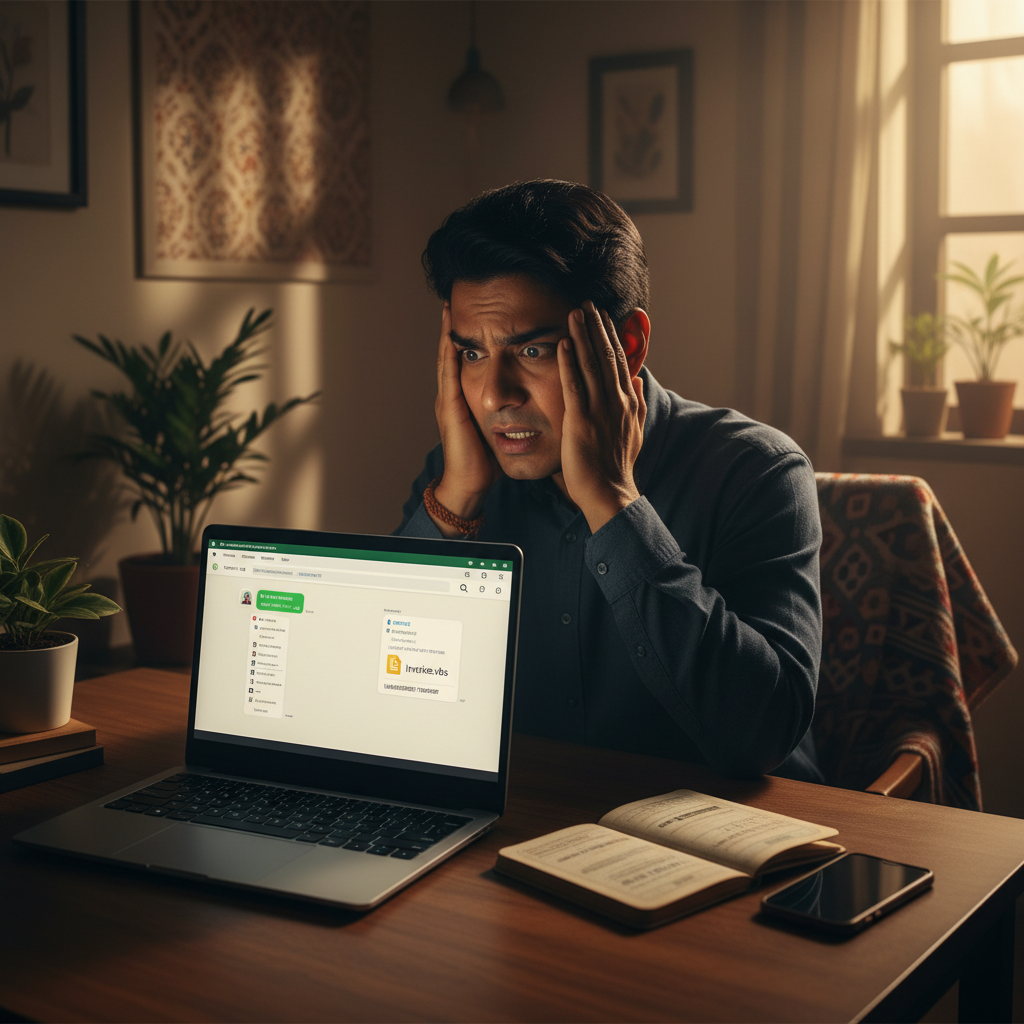
WhatsApp 'invoice.vbs' from friend opened: remote access, bank fraud – what to do?
A new sophisticated scam is circulating on WhatsApp, where cybercriminals send malicious files disguised as invoices or bank statements, often from contacts you know. Opening these files, especially on WhatsApp Desktop or Web, can install dangerous malware that grants attackers remote access to your system and steals your financial credentials, leading to significant monetary loss.
How This Scam Works
Imagine this: You're busy working, and a WhatsApp message pops up from a contact whose name you recognize – perhaps a colleague, a supplier, or even a friend. The message claims to be an urgent invoice, a pending payment reminder, or even your latest bank statement, with an attachment named something innocuous like "invoice.vbs," "payment_due.vbs," or "bank_statement.vbs." The '.vbs' extension is crucial here, as it signifies a Visual Basic Script file, which can execute commands on your computer. The scam leverages social engineering to exploit trust. Since the message appears to come from a known contact, your guard is naturally lowered. You might be expecting an invoice or statement, making the bait even more convincing. The criminals often compromise one WhatsApp account and then use it to spread the malware to that person's entire contact list, creating a chain reaction. When you open this seemingly harmless file, especially if you're using WhatsApp Desktop or Web (which runs on your computer's operating system), the VBS script silently executes. This script typically downloads and installs sophisticated malware onto your system. This malware isn't just a simple virus; it’s often a Remote Access Trojan (RAT) or a keylogger. A RAT allows the scammers to take complete control of your computer remotely. They can see everything on your screen, access your files, capture your keyboard inputs (including passwords for your banking apps, UPI, e-commerce sites, and social media), and even install further malicious software. A keylogger specifically records every keystroke you make. With this level of access, the criminals can then embark on financial fraud. They can log into your banking portals, initiate UPI transactions, access your e-wallets, or even use your stored credit card details for online purchases. Since they have remote control, they can often bypass OTPs by observing them displayed on your screen or received on your phone while you're distracted. The financial loss can be immediate and devastating, emptying your bank accounts or running up huge credit card bills. Beyond financial loss, they can also steal sensitive personal data like your Aadhaar number, PAN card details, or other KYC information, leading to identity theft.
Red Flags
- Unexpected Files from Known Contacts:** Even if it's from a contact you know, be suspicious of any unsolicited attachment, especially if the message doesn't provide sufficient context or seems out of character.
- Suspicious File Extensions:** Be extremely cautious of files ending with unusual extensions like `.vbs`, `.exe`, `.bat`, `.cmd`, `.ps1` (for scripts or executables), or even compressed files like `.zip` or `.rar` if you weren't expecting them. Reputable documents usually end in `.pdf`, `.docx`, `.xlsx`, etc.
- Urgent or Threatening Language:** Scammers often use pressure tactics ("urgent payment due," "account will be suspended") to rush you into opening the attachment without thinking.
- Generic or Poorly Worded Messages:** While this scam often comes from compromised accounts, some initial messages might still contain grammatical errors or generic greetings that don't sound like your actual contact.
- Request to Enable Macros or Content:** If you open a document file (like Word or Excel) and it prompts you to "Enable Macros" or "Enable Content," *never* do it unless you are absolutely certain of the sender and its authenticity.
How to Stay Safe
- Verify Before Clicking/Opening:** If you receive an unexpected attachment, especially with suspicious extensions, *always* verify its authenticity directly with the sender through a different communication channel (e.g., call them, send a separate SMS, or email them – do NOT reply to the suspicious WhatsApp message).
- Be Wary of WhatsApp Desktop/Web for Files:** Exercise extreme caution when opening attachments on WhatsApp Desktop or Web, as these run on your computer's operating system, making it easier for malware to infect your device.
- Keep Software Updated:** Regularly update your operating system (Windows, macOS), web browser, WhatsApp application, and antivirus software. These updates often include critical security patches.
- Use Reputable Antivirus/Anti-malware:** Install and maintain a robust, up-to-date antivirus and anti-malware solution on your computer and mobile devices. Scan regularly.
- Enable Two-Factor Authentication (2FA):** Activate 2FA on all your critical accounts, especially banking, email, and social media. Even if your password is stolen, 2FA adds an extra layer of security.
- Backup Your Data:** Regularly back up your important files to an external hard drive or cloud service. This can help you recover if your data is encrypted or corrupted by malware.
If You Are Targeted
- Immediately Disconnect from the Internet:** If you suspect you've opened a malicious file, disconnect your computer from the internet (unplug ethernet cable, turn off Wi-Fi) to prevent further data exfiltration or remote control.
- Scan Your System:** Run a full system scan with your updated antivirus and anti-malware software. Follow its instructions to quarantine or remove detected threats.
- Change All Passwords:** As soon as your system is clean or you are using a secure device, change all critical passwords (banking, email, social media, e-wallets, UPI apps). Prioritize accounts linked to financial transactions.
- Inform Your Bank:** Contact your bank immediately and report any unauthorized transactions. They can block your cards and provide guidance on next steps.
- Report to Cybercrime (India):** File a complaint with the National Cybercrime Reporting Portal (cybercrime.gov.in) or call their helpline 1930. Provide all details of the scam.
- Inform Your Contacts:** If your WhatsApp account was compromised and sent out the malicious files, inform your contacts immediately so they don't fall victim to the same trap. Advise them not to open any suspicious messages from you.
ScamGuard24 Insight
This scam highlights the evolving sophistication of cybercriminals who combine social engineering with technical exploits. The use of familiar contact names makes the threat particularly insidious, underscoring the need for layered security practices and constant vigilance, especially when it comes to unexpected file attachments.
Suspect a scam right now?
Open ScamGuard24 ScannerRecommended protection tools
AffiliateWe may earn a small commission if you sign up — it never changes our editorial picks.
India's most trusted antivirus. Blocks malicious APKs, UPI phishing and fake banking apps.
Get Quick HealAll-in-one mobile security + VPN. Stops phishing links shared on WhatsApp and SMS.
Try Norton 360Stop reusing passwords. Auto-fills only on the real bank site, never on phishing pages.
Get NordPassRelated alerts
 HIGH RISK
Instagram/WhatsApp task scam, invest money daily return, is it real?
 HIGH RISK
Fake Aadhaar Update Centre near me — is it real? How to check?
 HIGH RISK
Comments
Be the first to comment.